Getting Started for New Users
- Dec 12, 2025
- 3 min read
Welcome to myQ Enterprise! Here are a few topics to get you started quickly. Use the links below for more details.
Your administrator has sent you an email invitation to join the myQ Enterprise web portal. If you haven't received the email, ask your Administrator to resend it and check your spam folder.
After creating your password, the myQ Enterprise web portal will open on the Dashboard tab. For most users, this will be your primary page to engage with. There are two main sections to familiarize yourself with on this tab
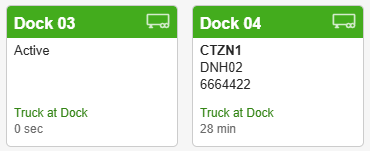
A real time view of activity at the docks is displayed here. At a glance, you will notice a legend that can also be used to filter the Docks that are displayed

Dock Traffic Legend
Available docks do not have an assigned shipment or truck present at the position. These are available for shipments to be assigned.
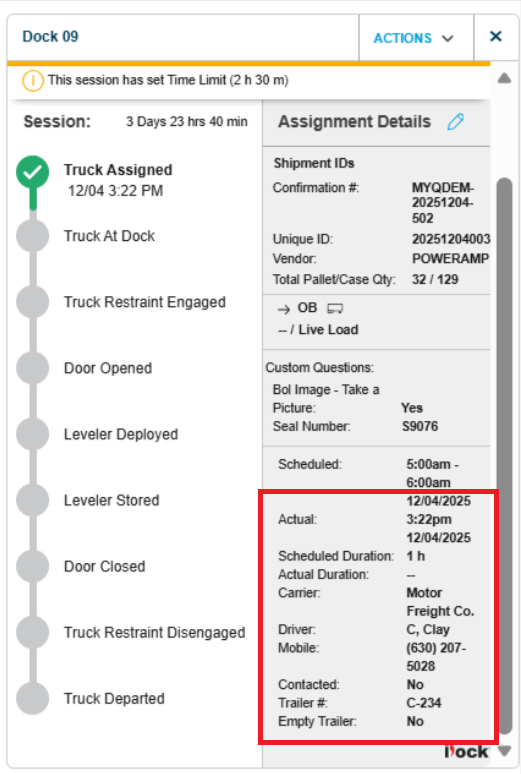
In Use positions have either a truck present or an assignment has been made. You can see if an assignment is made to a dock by looking at the tiles below
Blocked Docks have been manually blocked to prevent assignments. This could be due to a maintenance issue or to reserve a dock for a specific shipment that hasn't arrived.

Offline Docks have a connectivity issue. If you noticed this filter displayed, alert you maintenance department or administrator
Efficiency Alerts Legend
Your administrator has set definitions for dock session durations to align with your facility guidelines. In most cases, a session is set to be 2 hours or less.
In Detention sessions have exceeded the dock session target durations
Close to Detention sessions are a warning that the shipment should be addressed before it exceeds the facility detention settings
The Daily Schedule is used to manage shipments that are expected today and control dock assignments. It is also where you can interact with drivers as they check in for their appointment.
Trailer status and Driver Check-in Filters control what is displayed on the Daily Schedule

Trailer Status Legend
Scheduled Shipments have not yet completed a Driver Check-in
Awaiting Dock shipments have checked in but not assigned to a dock position
Dock Assigned shipments should be on their way to the assign position
In Progress shipments are currently at an assigned dock
In Yard shipments have completed their dock session but are still onsite
Checked Out shipments have left the facility
Driver Check-ins Legend
Started check-ins appear here as soon as the driver begins his check-in on their phone
Paused check-ins indicate that a driver has run into trouble and is stuck. You should pay attention to this and help them out.
Timed Out check-ins were not completed and need to start over, or be manually handled on the Daily Schedule
Once the Driver Check-in has been completed, their shipment will move from a Scheduled Trailer Status through the next stages.
Daily Schedule View
To get the most out of the Daily Schedule, you should configure your columns to display what matters to you. Do this using the gear icon at the top of the table.

To learn more about how to take actions on the Dock Positions or Daily Schedule, visit the linked pages. You should also be trained by a member of your team, so you know the expectations for how you engage with myQ Enterprise.
Helpful Links