
How-To Manually Assign a Shipment to a Dock
- Nov 18, 2025
- 1 min read
Updated: Dec 5, 2025
When it is time to make an assignment for a shipment that did not automatically receive an assignment, manual action will be required.
Assign and check in a shipment
In unusual cases, it may be necessary or more efficient to check in on an appointment manually by creating a truck assignment to a dock on the Dock Positions Dashboard. An example would be a driver who arrived at the receiving office that did not complete his check-in independently.
Look up at least the first five numbers of the PO on the daily schedule tab

On the dock positions tabs, hover over an available dock to assign a trailer. When you hover over the dock, an actions button will pop up and click on it.

3. Click the assign trailer button
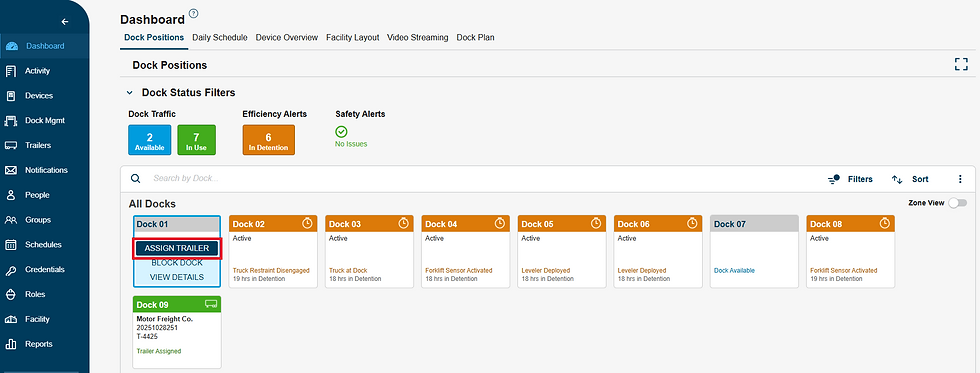
4. Press on “Check in Trailer Manually”

Enter the driver's information, do not skip this part! By adding the driver's contact, you will be able to have a conversation on the Daily Schedule as normal. Without this information, the driver chat will not work.

6. Select or Add the Trailer Number and check in the appointment

By following these steps, you will ensure accurate dock assignments and maintain smooth communication with drivers, even in unusual check-in scenarios.

