Manually Checking a Driver Out
- Nov 5, 2025
- 1 min read
Updated: Dec 5, 2025
If you need to check out an appointment in myQ Enterprise, follow the steps the below to complete the checkout process.
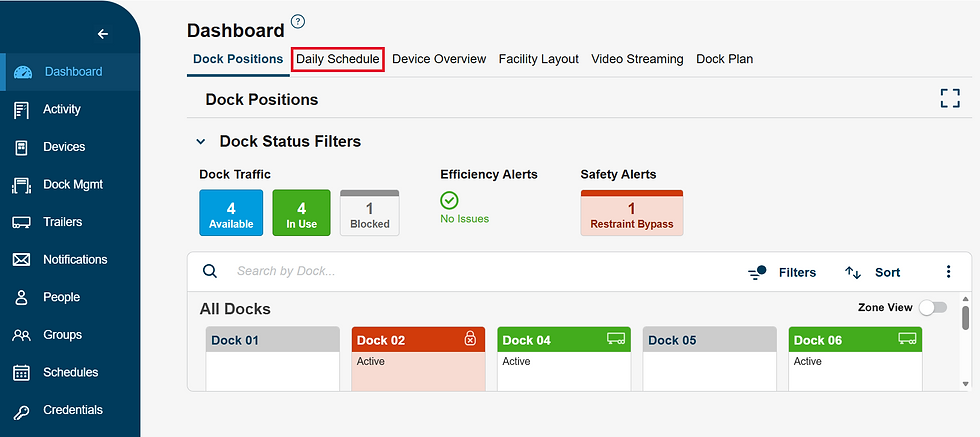
Navigate to the Daily Schedule tab from the Dashboard page

Search for the appointment you want to check out by typing in the last 5 characters of the appointment unique ID

Click "Actions" on the appointment record

Click "Change status"

Click "Checked Out"

Click "Change Status"

If needed, you can click on the pencil icon to update the trailer check out details.

Make any necessary changes. Note: You may need to zoom out to save details and check out.

Click "Check Out"

By following these steps, you will keep your scheduling process organized and records up to date.