
Accessing the Driver SMS Chat
- Nov 7, 2025
- 1 min read
Updated: Dec 5, 2025
Once a driver has checked in to their appointment in myQ Enterprise you can communicate with the driver via text message through the myQ application. Follow the steps below to find the driver chat.
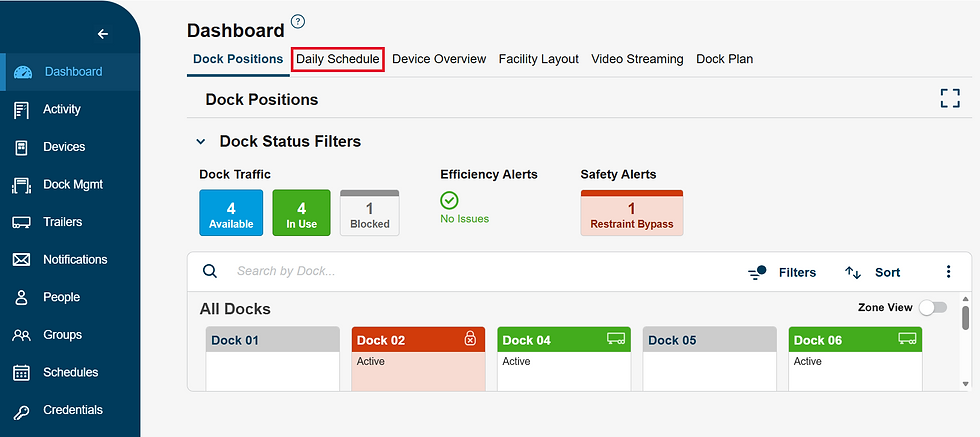
Navigate to the Daily Schedule tab from the Dashboard page
Search for the appointment by typing in the last 5 characters of the appointment unique ID. Click anywhere on the appointment record column except for the "Actions" dropdown to open appointment details.

Click on the dropdown with the driver's name and SMS icon in the lower right corner of the screen; you may have to scroll down to see the dropdown function.

Now you can view and send SMS messages to the driver.

To send an SMS message to the driver, simply type your message into the message box and click the blue arrow button.

Your SMS message will be saved in the thread and visible to the driver and anyone else who is able to access the myQ application.
