
Different Ways to Find a Session
- Nov 5, 2025
- 2 min read
To find a specific shipment, whether it is scheduled, awaiting dock, dock assigned, in progress, in yard, or checked out, you will need the shipment ID.
Search by Shipment ID (the default)
Navigate to the Daily Schedule tab from the Dashboard page
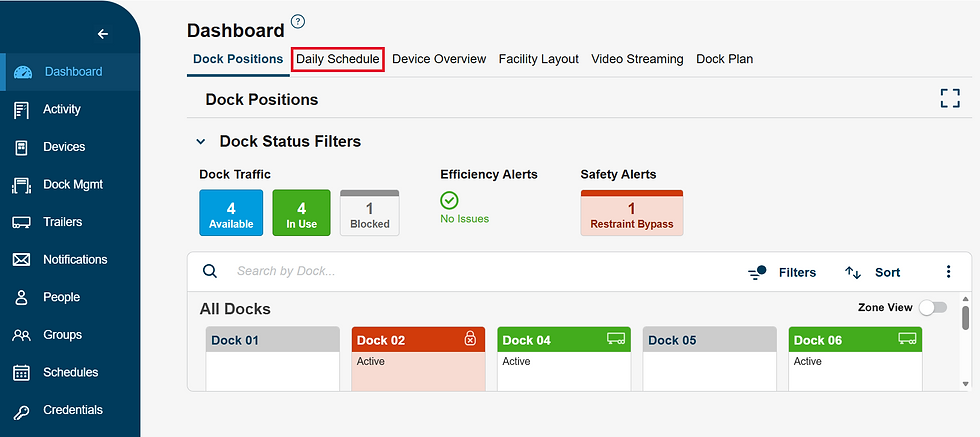
Click the "Search by 5 last characters" field and type in the last 5 digits of the unique shipment ID you are looking for

Your shipment should pop up, and you can click on it to view the full appointment details

Search by Vendor, Trailer Number, or Driver Name
Navigate to the Daily Schedule tab from the Dashboard page

Press your cursor next to the search icon and select the criteria in which you would like to search by.
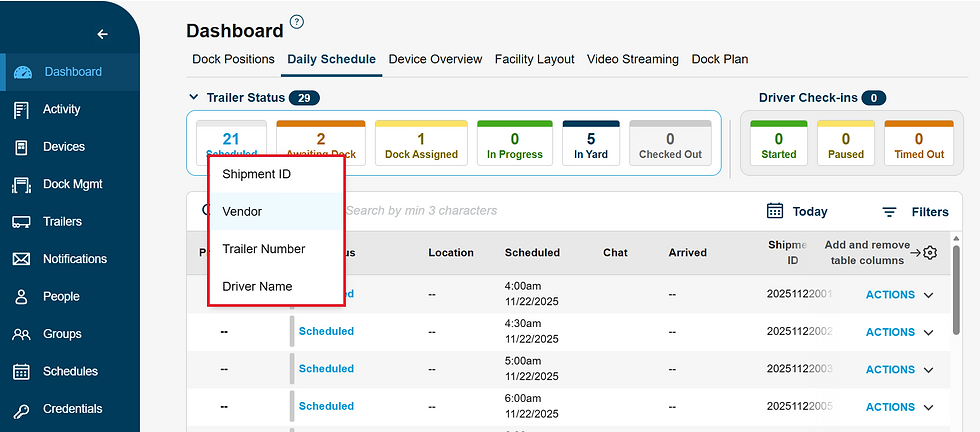
Search by the selected search criteria. For Shipment ID search by the last five characters, for the Vendor, Trailer Number, and Driver Name search by a minimum of three consecutive characters.

Find by Filter
You can also filter the table through various criteria including Carrier, Shipment Type, Product Type, Load Type, Drop & Hook, Trailer Status, Chat, Vendor, Creation Method, Check In or Check Out Method, Assignment Rule, and Assignment Method.
Click on the upper right-hand side of the Daily Schedule table

The filter options will pop up, and you can scroll down for more options.

Expanding Date
Press 'Today' button with the calendar icon at the top of the Daily Schedule table

The default is on the current day. You can add the sessions within the next 24 hours and past 24 hours by pressing the '+/- 24 Hours'. Navigate to a different month by using the arrows on the top right. In order to toggle to a different year, press the current month and year at the top left-hand corner.

After completing these steps, you should be able to find the appointment you are looking for along with the details that go with that shipment.


