
Shipment Notifications
- Nov 21, 2025
- 2 min read
Updated: Nov 24, 2025
Shipment notifications provide real time updates on appointments from creation to check in and everything between check out. These notifications can be set based on specific details on the appointments.
Navigate to the Notifications module and the Shipment Notifications tab. Then, press the Add Notification button

The Shipment Notification will be selected by default, so no need to select a Notification Type; then click Next.

Name the Notification, select the criteria of the notification and the trigger if prompted. Press next to proceed, you may have to scroll down to locate the Next button.
Appointment Status: will alert you when an appointment has changed from any status to another. Such as when a driver checks in with the shipment
Driver Check In: notifies you upon check in for specific types of shipments and/or time of day
Trailer Status: allows easy alerts about drivers that may be lingering at the dock or in the yard
Total Trailer Time: can be set to alert at any threshold

Select condition(s) for the notification and drag into the space with the blue plus button to apply it and select specific condition with the drop-down arrow.
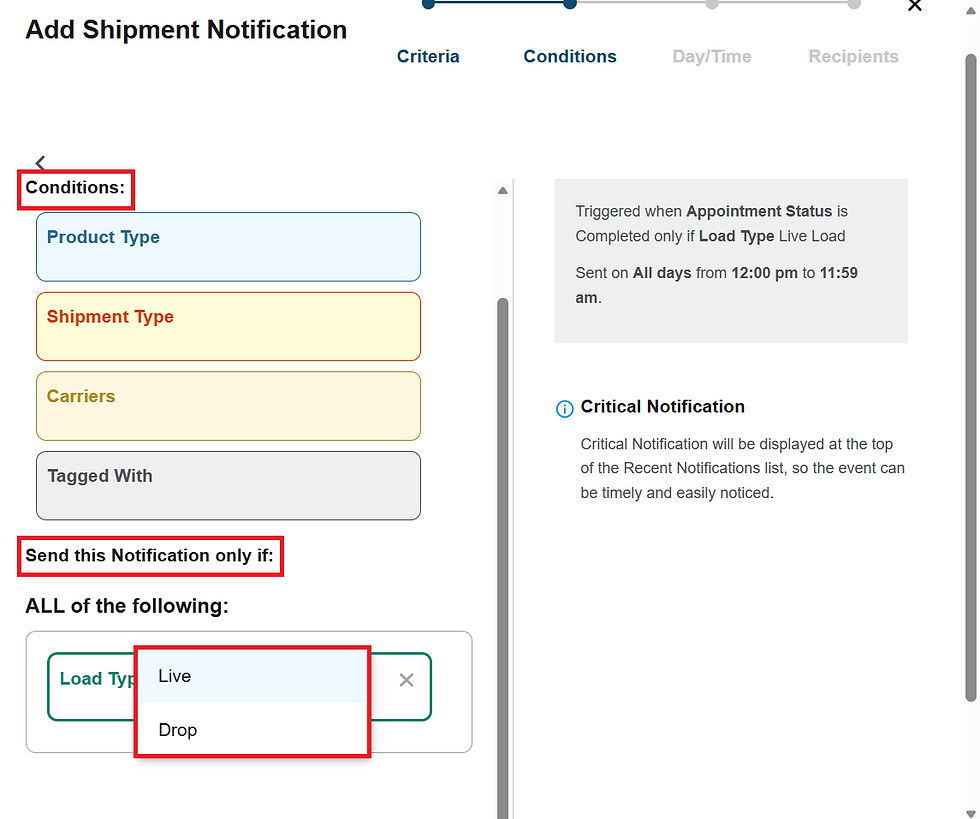
5. Scroll down, check the gray box if the notification is critical and then and press the Next button.

6. Edit when you would like the notifications to be sent to the recipient. You can do this by unselecting days of the week (Sunday-Saturday), typing a different time, and use the arrows to change from AM to PM or vice versa. Then, press the next button.

7. Search and select your desired recipients. Scroll down and click Save.

By setting up shipment notifications, you will stay informed with real-time updates on appointment status, driver check-ins, and trailer activity.

